If your staging routine depends on remembering to run a sync, it will eventually slip. SnugStage puts scheduled sync, selective sync and email alerts inside your Joomla admin panel, so the routine parts of staging happen without you. Here is how a normal working day changes.
1The problem: staging that relies on memory
Most Joomla sites get staged by hand. Files go over FTP, the database is exported and imported, and configuration.php gets edited by hand. It works, but it is an improvisation rather than a production process.
The weak point is not the copying. It is the remembering. Someone has to decide the staging copy is stale, find a quiet moment, run the sync, and hope nothing important was overwritten. On a busy week, that moment never arrives, and testing happens against a copy that no longer matches live.
Automating the routine parts removes that dependency. SnugStage is our staging environment for Joomla 4, 5 and 6, and it handles cloning, syncing and rollback from inside your own admin panel. You can read the full feature list on the SnugStage page.
2Morning: the sync has already run
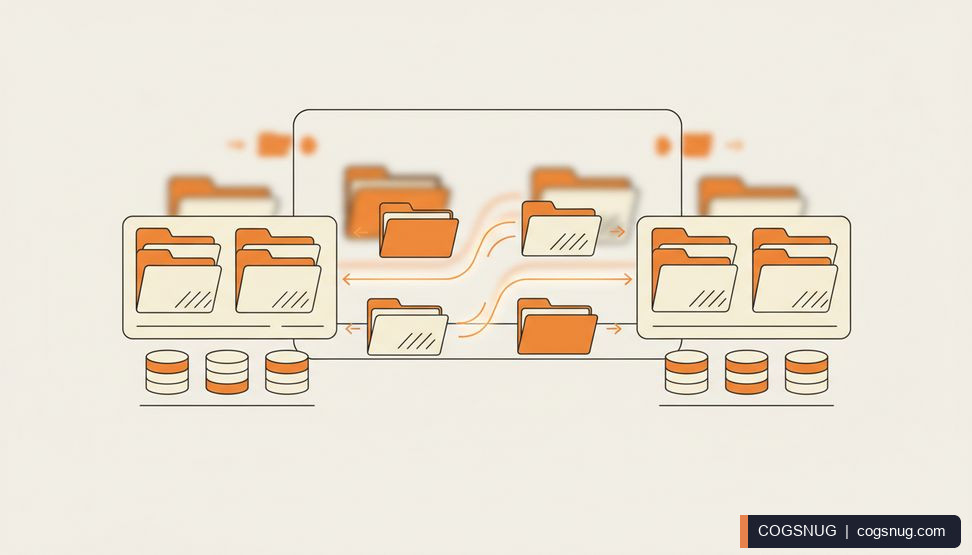
With scheduled sync, staging is kept up to date automatically via SnugStage's own task plugin. There is no external cron to configure and no SSH access required, which matters if your host does not offer either.
So the first change to your day is what you don't do. You don't open a terminal, you don't check whether last night's job ran, and you don't spend the first hour of the day copying files. You open the admin panel and the work is already waiting.
Two things help you trust that. First, the staging and live banners: an unmissable banner on every admin page tells you which copy you are looking at, and it is free forever on every install. Second, the activity log records every sync and rollback, including what ran, when, and what was skipped and why.
3Midday: you choose what merges
Full-mirror sync is fine for a simple site, but most real sites have content that should not travel. Selective file and database sync lets you choose exactly which tables or folders sync. The source describes it as a tracked merge, never a blind overwrite.
In practice, that turns a nervous job into a deliberate one. You decide what moves, run the sync, and check the log afterwards to see what was skipped and why. If you are new to setting up a staging copy in the first place, our guide on how to create a Joomla staging site with no SSH needed covers the groundwork.
If something does go wrong, every sync on a paid licence backs up first, automatically, and one-click rollback undoes a bad take without a manual restore. On the Free tier, syncs run without that automated safety net, so take your own backup first if you are not on a paid plan.
4Afternoon: the email tells you before anyone else does
Sync and rollback alerts email you the moment a scheduled sync completes, fails, or a rollback runs. That single feature changes how the afternoon feels.
You are not refreshing a screen to check whether the job finished. You are not finding out from a client that the site looks odd. A failure arrives in your inbox while you are still in a position to do something about it, and a completed sync is a quiet confirmation rather than a task on your list.
For agencies running more than one staging copy, this matters more, not less. Multiple environments let you run dev, QA and a client preview side by side, and locked-down staging access protects those copies with basic-auth or an IP allowlist so they are never left open to the world.
5What stays the same, and what to check
Automation does not remove judgement. You still test changes on the staging copy before they reach visitors, and you still decide what selective sync should include. What changes is the overhead around those decisions.
A few practical points worth knowing before you rely on it:
- ✓Scheduled sync, selective sync, rollback, multiple environments, email alerts and locked-down access are Pro features. Free gives you one staging environment with full-mirror sync you run manually, plus the safety banners and activity log, forever.
- ✓There is no grace period if a licence lapses. Pro features switch off immediately and the site drops back to the Free feature set. Nothing is deleted, but scheduling and rollback stop until you renew.
- ✓SnugStage requires Joomla 4, 5 or 6 and PHP 8.1+. Both the component and its task plugin update through Joomla's own Updates screen once your licence is active.
If you are recovering from a change that already went wrong, our post on how to undo a bad Joomla update is the place to start. Otherwise, the sensible first step is to install SnugStage, clone your live site, and run one manual sync so you can see the log and banners for yourself before you switch scheduling on.
Put your staging routine on autopilot
Clone your live site, choose what syncs, and let scheduled sync and email alerts handle the routine. Start with the free tier, no card needed.
Explore SnugStage → Ask us a question →Related: SnugStage · How to Create a Joomla Staging Site (No SSH Needed) · How to Undo a Bad Joomla Update: A Recovery Guide